
A Comprehensive Guide to Tmux: Boosting Productivity with Terminal Multiplexing
Introduction
In the world of software development and system administration, productivity tools are essential for efficiently managing tasks and workflows. One such indispensable tool is Tmux, a terminal multiplexer that allows users to switch between multiple programs in a single terminal, detach and reattach sessions, and much more. This article explores Tmux, its features, and how to get started with it to enhance your command-line productivity.
What is Tmux?
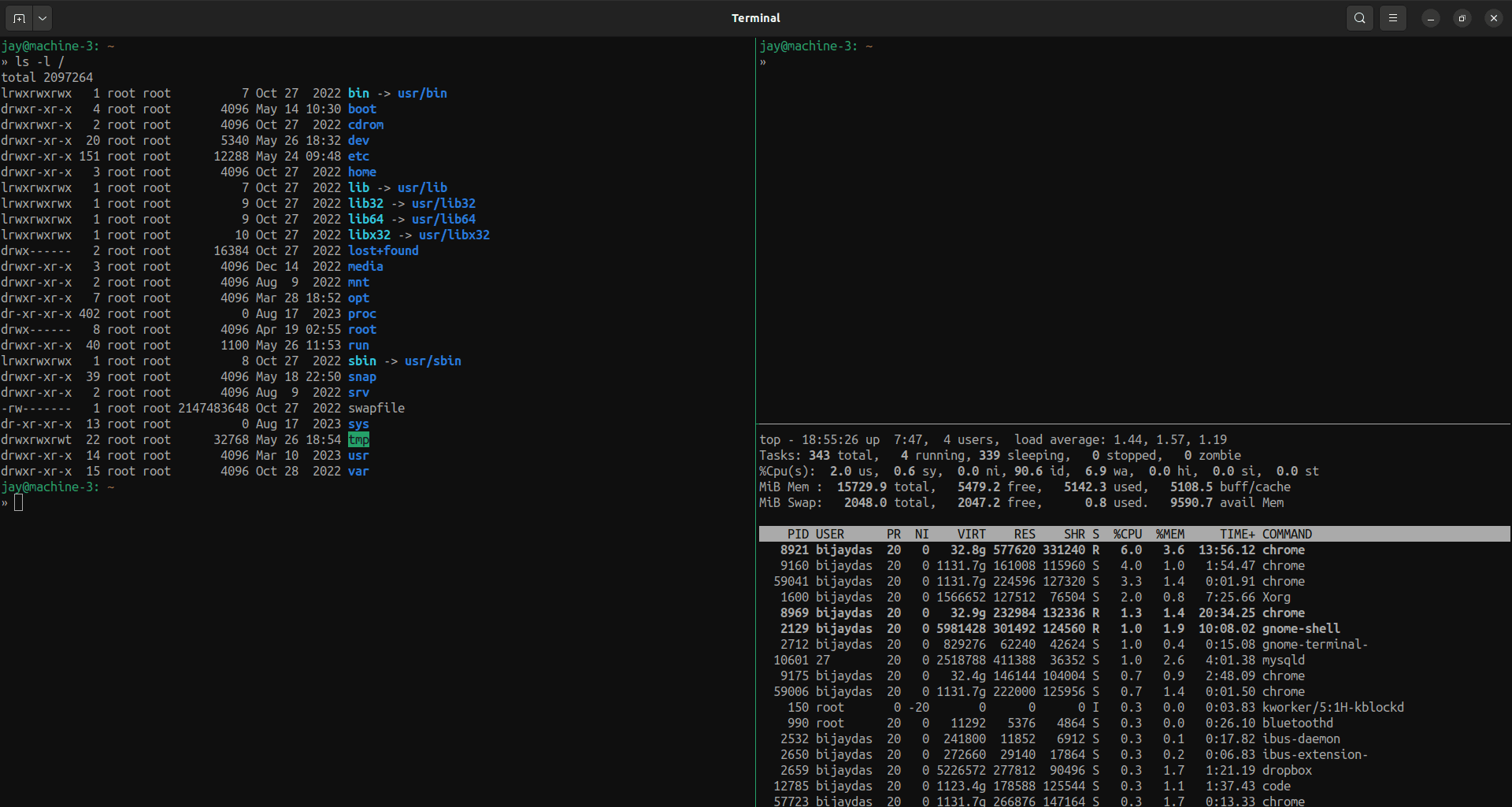
Tmux, short for Terminal Multiplexer, is an open-source application that lets you manage multiple terminal sessions from a single window. It was designed to overcome the limitations of the traditional terminal and provide a more flexible and powerful user experience. With Tmux, you can:
Split your terminal into multiple panes.
Create, manage, and switch between multiple terminal sessions.
Detach sessions without closing programs and reattach them later.
Share terminal sessions with other users.
Why Use Tmux?
1. Enhanced Productivity
Tmux allows you to work on multiple tasks simultaneously without cluttering your desktop with numerous terminal windows. By splitting your terminal into panes, you can run different processes side by side, which is particularly useful for monitoring logs, running scripts, and editing code concurrently.
2. Session Management
One of the standout features of Tmux is session management. You can detach from a session and reattach later, even from a different machine. This is invaluable for long-running processes or remote server management, ensuring your work remains uninterrupted.
3. Customization and Scripting
Tmux is highly customizable, with numerous options to tailor it to your workflow. You can create custom key bindings, configure layouts, and write scripts to automate routine tasks. This level of customization helps streamline your work environment to suit your specific needs.
Getting Started with Tmux
Installation
Tmux is widely available on most Unix-like operating systems. To install Tmux, use the following commands based on your package manager:
On Ubuntu/Debian
sudo apt update
sudo apt install tmux
On CentOS/RHEL
sudo yum install tmux
On macOS (using Homebrew)
brew install tmux
Basic Commands
Starting a Tmux Session
To start a new Tmux session, simply type:
tmux
You can also name your session for easier identification:
tmux new -s mysession
Detaching and Reattaching Sessions
To detach from a session, press Ctrl + b followed by d. This will return you to your normal terminal shell.
To list existing Tmux sessions, use:
tmux ls
To reattach to a session, use:
tmux attach -t mysession
Splitting Panes
One of the most powerful features of Tmux is the ability to split the terminal into multiple panes. To split the current pane horizontally, press Ctrl + b followed by %. To split it vertically, press Ctrl + b followed by ".
You can navigate between panes using Ctrl + b followed by the arrow keys.
Customizing Tmux
Tmux is highly customizable through its configuration file (.tmux.conf). Here’s an example configuration to get you started:
# Set prefix key to Ctrl-a
unbind C-b
set-option -g prefix C-a
bind-key C-a send-prefix
# Enable mouse support
set -g mouse on
# Set default terminal mode to 256 colors
set -g default-terminal "screen-256color"
# Split panes using | and -
bind | split-window -h
bind - split-window -v
To apply the changes, reload the Tmux configuration with:
tmux source-file ~/.tmux.conf
Advanced Tmux Features
Scripting with Tmux
Tmux supports scripting, allowing you to automate tasks and setup complex workflows. For instance, you can create a script to start a development environment with multiple panes and windows:
#!/bin/bash
tmux new-session -d -s dev
tmux rename-window -t dev:0 'Editor'
tmux send-keys -t dev:0 'vim' C-m
tmux new-window -t dev:1 -n 'Server'
tmux send-keys -t dev:1 'cd ~/myproject && npm start' C-m
tmux split-window -h -t dev:1
tmux send-keys -t dev:1 'tail -f logs/app.log' C-m
tmux select-window -t dev:0
tmux attach-session -t dev
Save this script and run it to start your development environment in Tmux.
Plugins and Extensions
Tmux has a vibrant ecosystem of plugins and extensions that add additional functionality. One popular plugin manager is Tmux Plugin Manager (TPM), which simplifies the installation and management of Tmux plugins.
To install TPM, run the following commands:
git clone https://github.com/tmux-plugins/tpm ~/.tmux/plugins/tpm
Add the following lines to your .tmux.conf:
# List of plugins
set -g @plugin 'tmux-plugins/tpm'
set -g @plugin 'tmux-plugins/tmux-sensible'
# Initialize TPM (keep this line at the bottom of tmux.conf)
run '~/.tmux/plugins/tpm/tpm'
Reload Tmux and install the plugins with prefix + I (default prefix is Ctrl + b).
Conclusion
Tmux is a powerful tool that can significantly enhance your command-line productivity. Its ability to manage multiple sessions, split panes, and customize workflows makes it an essential tool for developers and system administrators alike. By incorporating Tmux into your daily workflow, you can streamline your tasks, improve efficiency, and maintain a more organized work environment.
Whether you are a seasoned Tmux user or just starting, this guide provides the foundation to harness the full potential of Tmux. Happy multiplexing!